Boundera MCP
Your AI agent.
Your FedRAMP context.
Bring your readiness, evidence, policies, and monitoring into the AI tools you already use. Connect Claude, Cursor, or Codex to your Boundera tenant.
Choose your clientOne endpoint. Your choice of client.
https://boundera.io/mcp- OAuth sign-in
- No API key to copy
- Tenant-scoped access
MCP is the Model Context Protocol. It lets your AI client use Boundera tools with the access you authorize.
Before you connect
An organization owner must enable the connector for your tenant. Sign in with an account that has access.
Access detailsGet connected
Choose your AI client.
The same MCP endpoint. A setup guide for the tool you use.
Connect Claude
Web, desktop, and Claude Code
Open your connectors
Go to Customize → Connectors and choose Add custom connector.Add Boundera
Enter Boundera as the name and paste the MCP URL. Select Continue to finish setup. Some versions label this button Add.Connect your account
Select Connect, sign in to Boundera, choose your tenant, and review the requested permissions.
On Team or Enterprise, an owner first adds the connector under Organization settings → Connectors. Members then connect their own accounts.
Claude setup documentation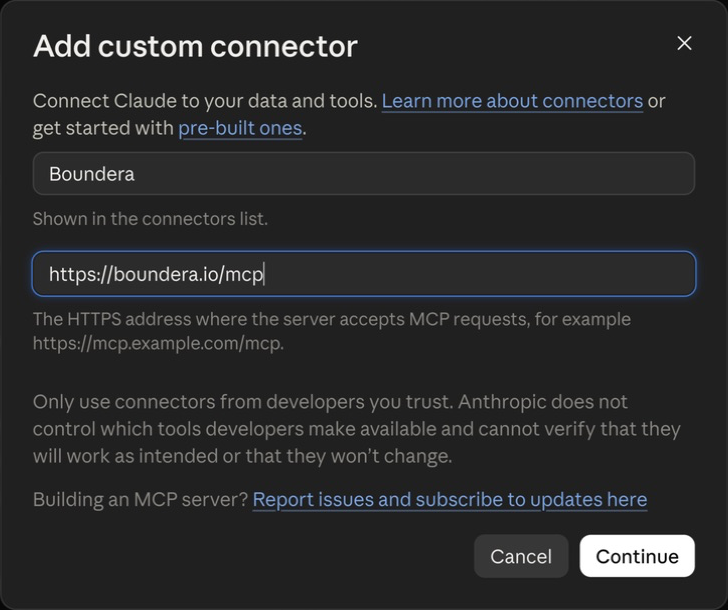
Using Claude Code in a terminal?
Add the server with this command. Then open Claude Code, run /mcp, select boundera, and authenticate.
claude mcp add --scope user --transport http boundera https://boundera.io/mcpCheck the connection. Ask your agent: “Which Boundera tenant am I connected to?”
You control the connection.
Choose a tenant, review access, and end the connection from Boundera whenever you need to.
- One tenant at a time
- Each connection belongs to one person and one tenant.
- Review the permissions
- See what your agent requests before allowing it.
- End access at any time
- Revoke your connection from Boundera's Connected agents page.
Who can connect?
Organization owners and members can connect their tenants. The connector defaults off; an owner can enable it when available to the organization. External viewers cannot connect.
Assessors need an active, unexpired Trust Center assessor grant with agent access allowed. Assessor access follows the provider's Trust Center sharing settings. The provider's internal posture and policy tools are not available to assessor connections.
What permissions can an agent request?
Your client requests permissions. Review them together, then allow or cancel. The consent screen has no individual permission switches.
posture:read- Read readiness, indicators, rules, and monitoring.
posture:write- Update statements, gaps, checks, rules, and monitoring.
policies:read- Read the policy register, documents, and reviews.
policies:write- Update register entries, publish entries, and record reviews.
assessment:read- Read assessment information shared through your Trust Center grant.
offline_access- Stay connected through token renewal.
Provider connections default to posture and policy read permissions when the client omits scopes.
How are changes and tool calls controlled?
Writes require an owner or member with the relevant permission. Agents are instructed to ask before writes; Boundera does not pause calls for another approval. Rule deviations require owner acceptance. Calls are recorded with the person, tenant, tool, and outcome.
The default limit is 60 calls per minute per person and tenant. Calls time out after 50 seconds, but a started write may still finish. Check its outcome before retrying.
How do I end a connection?
Open your Boundera profile menu, choose Connected agents, and revoke the connection. Owners can revoke any connection to their organization's tenants or switch a tenant's connector off. Access stops on the next call.
Access tokens last one hour; connections expire after about 30 days without token renewal. Removing a connector inside your agent may not revoke its Boundera credentials.
Can I use another client, and how is access secured?
Other clients need Streamable HTTP and compatible OAuth with automatic client registration. Boundera uses S256 proof keys, hashes tokens at rest, and checks tenant access on every call. Tokens issued for another service are refused.
Read our security page and privacy policy. Report security concerns to security@boundera.io.